
Overview
Entra ID allows you to segment users into groups, utilizing your existing Entra ID groups for creating audiences in Simpplr. This can save you a lot of effort when creating and managing large audiences.
- Connect Entra ID
- Create/Delete bulk audiences using Entra ID groups
- Manually create audience using Entra ID groups
- Migrate existing Entra ID users to groups
- Use Entra ID audience with other features
Connect Entra ID
1. As the Microsoft Entra ID global admin user and an App manager in Simpplr, in your Simpplr account, go to Manage > Application > Integrations > People data.
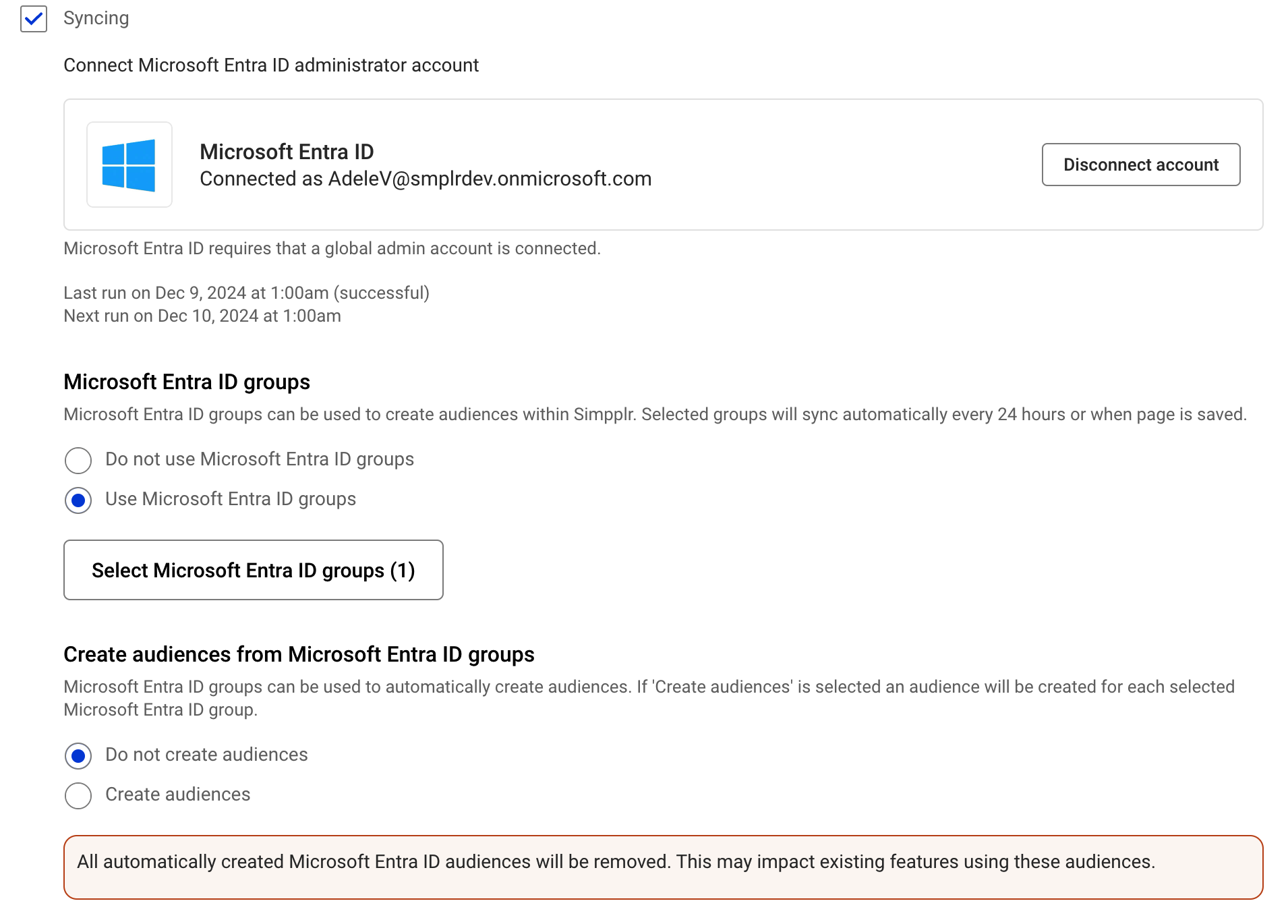
2. When you connect to your admin account for the first time, you'll be given the option to use Microsoft Entra ID groups.
3. If you select Use Microsoft Entra ID groups, you'll be directed to the Entra ID groups modal. Choose which groups you want to use later as Audience membership. When creating Entra ID group-based Audiences, the groups selected here will appear as options.
- This feature will add to existing App Management capabilities to enable Entra ID Groups to be used for Audience members.
- The entire list of an organization’s Groups can be fetched and any subset can be enabled for use in Audience creation.
Note: Selected groups will automatically sync every 24 hours through scheduled jobs, to ensure Audiences reflect the updated groups data.
Creating/Deleting Bulk Audience using Entra ID groups
Once the Entra ID groups have been selected, App managers can choose to create or delete bulk audiences automatically.
1. The Create audiences option allows them to automatically generate bulk audiences, one audience respective to each selected Entra ID group.
2. The Do not create audiences option deletes all the automatically created audiences.
 Manually create audience using Entra ID groups
App managers can also create any custom Audience manually using one or more Entra ID groups as Audience members. The Select by Entra ID group can be found in Add audience. To get there, head to your user menu, then Manage > Audiences. App managers can select the groups for one or more group types and create a new Audience.
Only previously enabled groups by the App manager are available here as groups options.
Migrate existing Entra ID users to groups
Existing users who already had Entra ID accounts connected will be given a prompt on the Integrations screen, informing them that if they wish to migrate to the new Entra ID groups, reconnection of the Entra ID account is required.
Once they disconnect and reconnect the account, Entra ID groups will be available for use.
Use Entra ID Audience with other features
Similar to the existing Audience members functionality, we can continue to use the Entra ID groups Audiences with other features like Subscriptions, Alerts, Newsletters and Social campaigns.
Comments
Hey Matthew Rawls,
This article mentions that Distribution Groups are not supported. Is that something that has changed recently? Is there something on the roadmap for when these groups might become available within Simpplr?
Also, I see in some of the images that Distribution groups is an option that can be selected. Does the fact that Distribution groups are not supported mean that when connected entra ID an application manager wouldn't see that option?
Thanks for getting back to me.
Hi Brian. Distribution groups are supported. That article note was a bit outdated. It's gone now.
Please sign in to leave a comment.