
Albums
Albums are one of the three types of content available to create in Simpplr, along with events and pages. Albums are collections of images and/or videos you can post and share with your organization.
There are two ways to add an album:
- Click the global + button on the navigation bar, right next to your profile icon.
- Go to any site, then click on + button at the rightmost of the site header.
In the pop-up window, select Album as content type, and select site to publish event under.
Album creation flow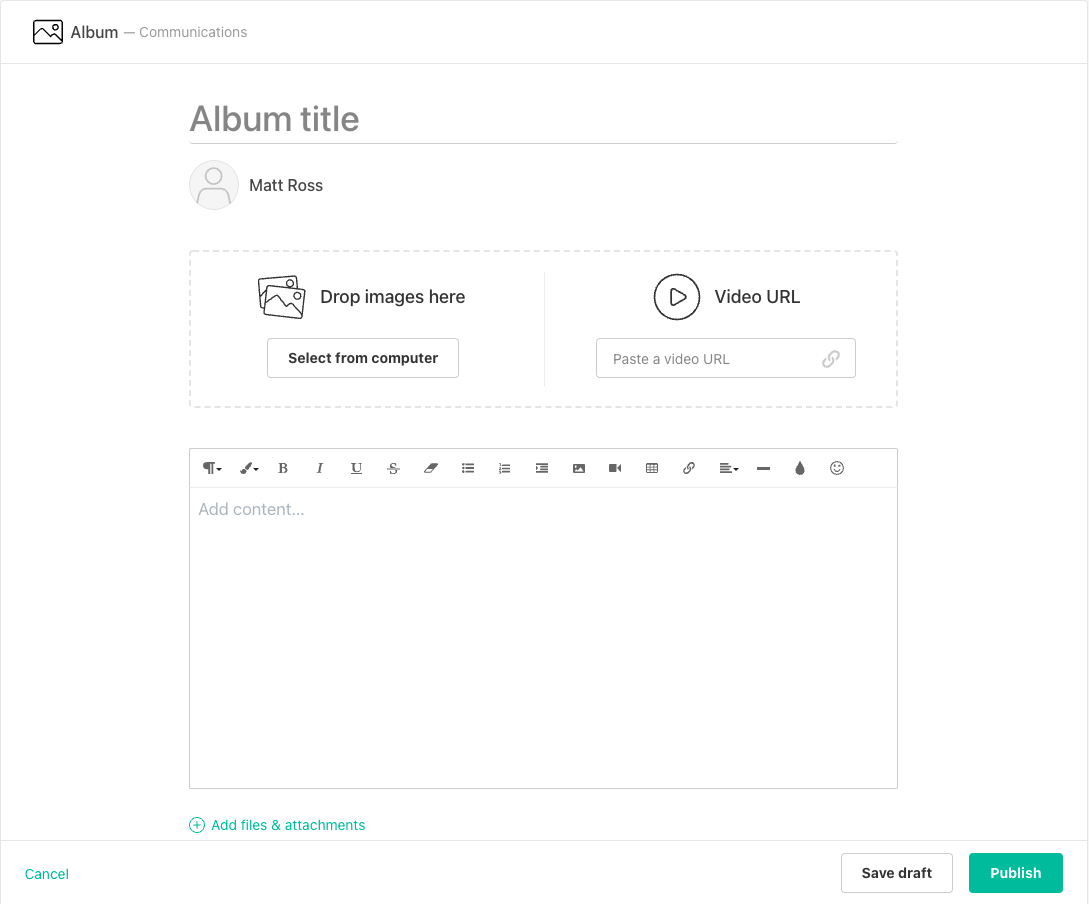
- Add an Album title.
- You can drag & drop the photos to Drop images here or click on Select from computer to browse photos on your computer. All photos must be uploaded from your computer. You can add a maximum of 500 photos or videos to any Album. For best results, upload 60 photos or less at once.
- Click Add Videos to add a video. Enter the video URL. You can upload from video hosting services like Youtube, Vimeo and more.
- Enter Album Content.
- Add Files, which can be from local file repository, Intranet, or the external file system that the site has integrated with. Files will appear as attachments below the album content.
- Add relevant Topics to make your album easily searchable.
- Select to Publish immediately or from a specific date.
- Select how long you would like to publish the album. You can select Indefinitely, which will leave the album active until manually unpublished, or to publish for 3 months, 6 months, or until a specified date.
- Check Maximize content width if you want the album to expand to full width on the screen.
- Add a Summary. The summary will be used in the feed and tiles when the event appears.
- Select Open album to allow other employees to add images and videos to this album.
- Select Allow Feed Posts to add a feed section at the bottom of the album for users to add comments.
- Click Publish. If you are the Site owner/manager/content manager, your Content will appear right away. Otherwise, you will be notified once the content is reviewed and approved.
Note
You can also click Save draft and continue to work on the draft later.
Album cover photos in feed now open the full album
When you see an album in your Home or Site feed, clicking the album cover photo will open the full album, so you can browse all photos in one place.
The album cover photo itself is clickable in the feed.
-
Clicking the cover photo takes you directly to the full album view, where you can:
See all photos and videos in the album.
Use the album’s slideshow or navigation controls.
Read any album description or additional context the author has provided.
This works for album posts surfaced on the Home feed and Site feeds (subject to your usual access permissions).
How it works for end users
Go to your Home feed or a Site feed.
Look for a post that includes an album (for example: “New photos from our team offsite”).
-
In the post, you’ll see:
The album cover photo, and
Additional album details (title, site, etc.), depending on your configuration.
Click or tap the album cover photo.
-
You’ll be taken directly to the full album page, where you can:
Scroll through all photos and videos.
Open individual images in a larger view.
Use the album’s navigation tools (e.g., next/previous, slideshow).
If you do not have permission to view the album (e.g., it belongs to a private site you can’t access), you’ll see the same permission behavior you would expect when opening the album via any other link (for example, an access error or a restricted view).
-
The feature respects existing permissions and visibility rules:
Users only see and can open albums they are allowed to access.
Behavior is consistent with other album entry points (e.g., from site dashboards or album tiles), but now your feed is also a reliable way to get to the full album.
Comments
Please sign in to leave a comment.