
Overview
Microsoft Entra ID groups allow you to segment users into predefined groups within your organization. By integrating these groups into Simpplr, you can create audiences based on existing Entra ID group memberships, streamlining your audience creation process.
Who is this for: App Managers, Audience managers
Jump to a section:
- Step 1: Connect Entra ID
- Step 2: Create audiences automatically or create audiences manually
- Migrate existing Entra ID users to groups
- Use Entra ID audience with other features
- Best practices
- Troubleshooting
| ⭐️ Supported Entra ID groups: Distribution groups, mail security groups, Microsoft 365 groups, Security groups |
When to use Microsoft Entra groups for audience creation
There are multiple ways to create audiences, as described here. Audiences are customizable groups of users based on attributes like role, location, or specific individuals. They can then be used to manage who has access to specific features and content.
We recommend creating audiences with Microsoft Entra groups when:
- You want to leverage existing organizational groupings for audience creation.
- You prefer to manage audiences based on Entra ID group memberships rather than individual attributes.
- You aim to simplify audience management by utilizing predefined groups.
Step 1: Connect Entra ID
Before you create audiences using Entra ID, make sure it’s integrated at the application level. This requires your Entra ID Global Admin and an App manager to complete the connection.
Follow these steps:
- As the Microsoft Entra ID global admin user and an App manager in Simpplr, in your Simpplr account, go to Manage > Application > Integrations > People data.
- Connect your Entra ID account.
- When you connect to your admin account for the first time, you'll be given the option to use Microsoft Entra ID groups.
- Select Use Microsoft Entra ID groups if you want to use Entra ID to create audiences.
- The Entra ID groups modal will pop up. Select the groups you want to use later to build your audiences*.
- The entire list of an organization’s Groups can be fetched, and any subset can be enabled for use in Audience creation
- Select Done.
✨ Selected groups will automatically sync every 24 hours through scheduled jobs to ensure Audiences reflect the updated group data.
Option 1: Creating audiences automatically using Entra ID groups
Once the Entra ID groups have been selected, App managers can choose to create audiences automatically.
Follow these steps:
- As the Microsoft Entra ID global admin user and an App manager in Simpplr, in your Simpplr account, go to Manage > Application > Integrations > People data.
Option 2: Creating audiences manually using Entra ID groups
App managers can also create any custom Audience manually using one or more Entra ID groups as Audience members.
- To get there, head to your user menu, then Manage > Audiences. App managers can select the groups for one or more group types and create a new Audience.
- From Add audience, locate Select by Entra ID group.
Connect Entra ID
- As the Microsoft Entra ID global admin user and an App manager in Simpplr, in your Simpplr account, go to Manage > Application > Integrations > People data.
- When you connect to your admin account for the first time, you'll be given the option to use Microsoft Entra ID groups.
- If you select Use Microsoft Entra ID groups, you'll be directed to the Entra ID groups modal. Choose which groups you want to use later as Audience membership. When creating Entra ID group-based Audiences, the groups selected here will appear as options.
- This feature will add to existing App Management capabilities to enable Entra ID Groups to be used for Audience members.
- The entire list of an organization’s Groups can be fetched and any subset can be enabled for use in Audience creation.
Note:
Selected groups will automatically sync every 24 hours through scheduled jobs, to ensure Audiences reflect the updated group data.
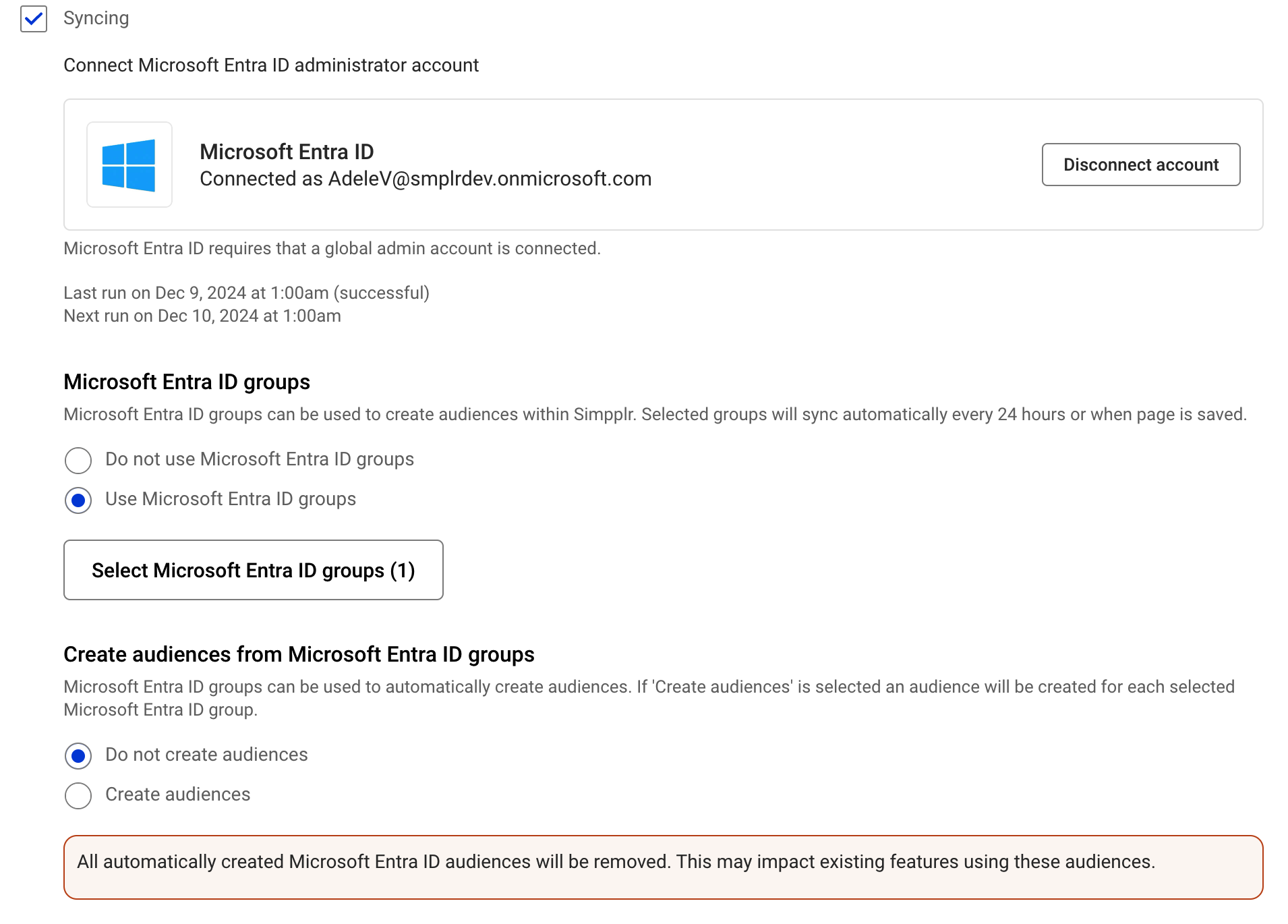
Creating/deleting bulk audiences using Entra ID groups
Once the Entra ID groups have been selected, App managers can choose to create or delete bulk audiences automatically.
- The Create audiences option allows them to automatically generate bulk audiences, one audience respective to each selected Entra ID group.
Note:
Audiences created automatically through Entra groups get created as system audiences under the audience category ‘Microsoft Entra ID groups’. - The Do not create audiences option deletes all the automatically created audiences. Audiences cannot be deleted if they are being used anywhere in a site, content, access control group etc. Hence, groups or audiences can be deleted only if audiences using the groups are not being used anywhere.
 Manually create audience using Entra ID groups
App managers can also create any custom Audience manually using one or more Entra ID groups as Audience members. The Select by Entra ID group can be found in Add audience. To get there, head to your user menu, then Manage > Audiences. App managers can select the groups for one or more group types and create a new Audience.
Only previously enabled groups by the App manager are available here as group options. Follow these steps to add an audience using Entra ID groups:
- Go to Manage > Audiences
- Click on Create
- Add a name for your audience, select a parent (e.g. audience category), and select Microsoft Entra ID in the Type drop down
- Select the Microsoft ID group in the middle drop-down next to the Is, Is not, All drop down
- Select attributes you want to add to the audience.
- Press Create
|
If you want to add multiple group types in a single audience, we recommend adding a rule to your group and using the "or" operator. You can also create two groups in your audience by using a single rule in each grouping. For example: Group 1 = Microsoft 365 group Is HR-Talent Management, Simpplr-Marketing. Add group and use the "or" operator. Group 2 = Security group Is App-Access-ServiceNow App-Access-Salesforce. This setup will add users from both Entra ID groups in the same audience. 🎉 |
Migrate existing Entra ID users to groups
Existing users who already had Entra ID accounts connected will be given a prompt on the Integrations screen, informing them that if they wish to migrate to the new Entra ID groups, reconnection of the Entra ID account is required.
Once they disconnect and reconnect the account, Entra ID groups will be available for use.
Use Entra ID Audience with other features
Similar to the existing Audience functionality, we can continue to use the Entra ID groups Audiences with Site Subscriptions, Alerts, Access Control Groups, Newsletters, and Social campaigns.
Best practices
- Use Entra ID groups managed by your IT or HR teams to ensure accuracy.
- Keep audience names aligned with their corresponding group names.
- Avoid duplicating audiences that mirror the same Entra ID group.
- Review and refresh group mappings periodically.
Troubleshooting
If your Entra ID audience doesn’t appear or update as expected:
- Confirm your integration with Microsoft Entra ID is active.
- Check if the selected Entra ID groups are still available and active.
Comments
Please sign in to leave a comment.